
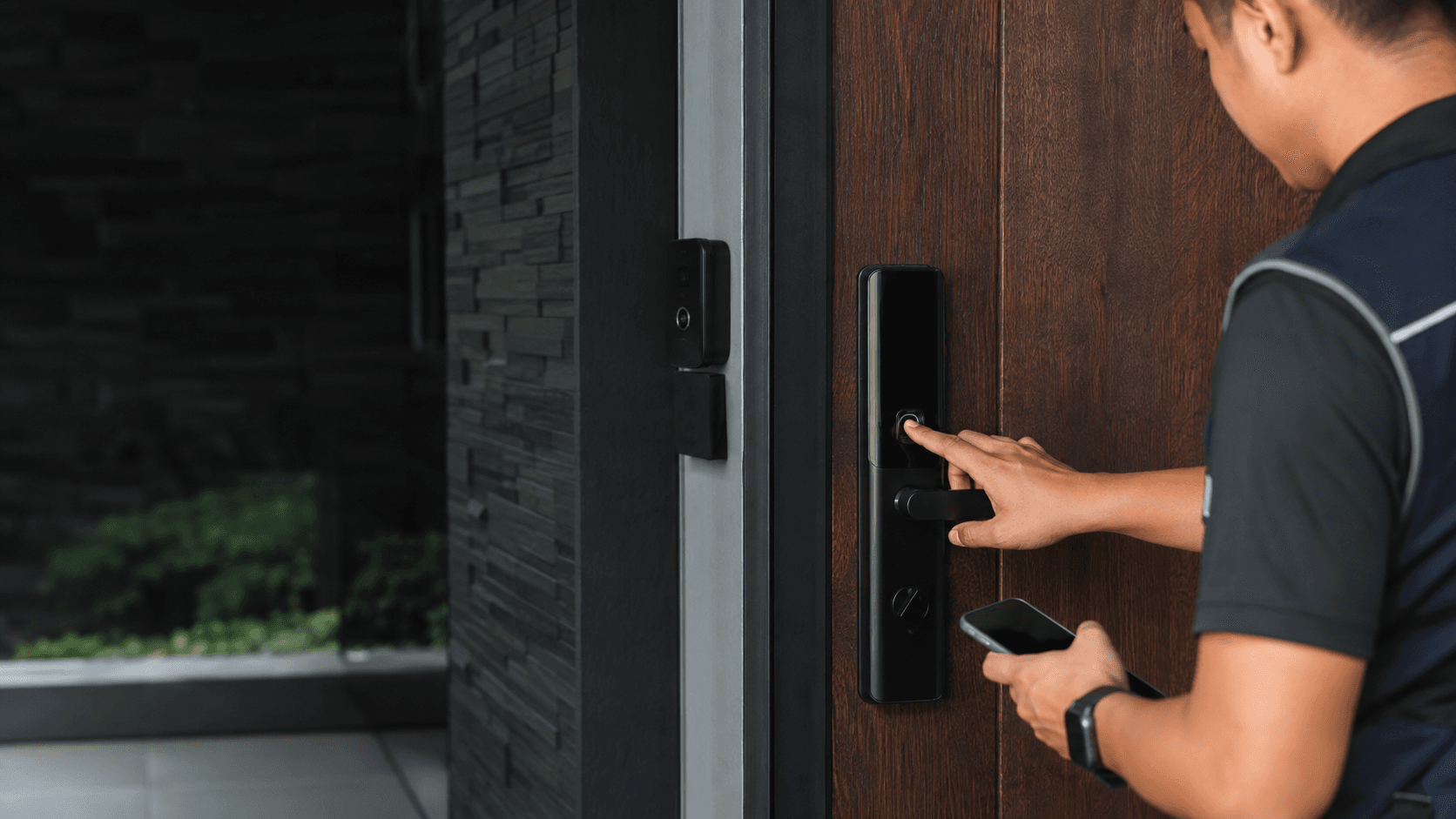
The connection is not a single cable or a single app screen. It is a chain. the lock must be a supported model, the hub or gateway must bridge that lock to the internet, and the RemoteLock account must be authorised to control it. When any link in that chain is missing, the lock still works as a keypad but stops responding to remote commands.
Connect Remotelock. what the connection actually links
Connect Remotelock joins three separate layers, and each layer has its own failure mode.
- Confirm the lock model appears on RemoteLock's supported device list before purchase, because an unsupported lock cannot be added to the account at all.
- Check the lock's radio type. Z-Wave locks need a Z-Wave hub or gateway in range; Wi-Fi and Bluetooth locks connect differently and may not need a hub.
- Place the hub within reliable radio range of the door, and confirm it has stable power and internet.
- Create or sign in to the RemoteLock account, then add the property and the door before adding the device.
- Pair the lock to the hub first, then link the hub or lock to RemoteLock, following the order the platform expects.
- Issue a test credential, use it at the door, then check that the event appears in the activity log.
- Record the lock model, hub model, firmware version, account email and pairing date for future troubleshooting.
The account layer is what most people underestimate. RemoteLock is a cloud platform, so the lock is only reachable while the hub or lock has a working internet path. A power cut at the router breaks remote control even though the door still opens with a stored code.
Which locks, hubs and platforms appear in the connection path
RemoteLock's own device and integration pages describe a hardware list that includes Kwikset, Yale, Schlage, HID and Mercury panels, alongside a SmartThings Z-Wave hub option. Property management platforms such as OwnerRez, Guesty, AppFolio and Yardi appear in the same ecosystem, where a booking or tenancy event can trigger a code automatically.
That breadth is useful but it also means the connection path differs by device class:
- Z-Wave deadbolts rely on a hub or gateway to reach the cloud. The hub is the single point that matters most.
- Wi-Fi locks reach the network directly, so hub placement is less critical but Wi-Fi signal at the door becomes the weak point.
- Wired access control panels such as HID or Mercury hardware sit in a different category again, usually tied to a building's existing access system rather than a residential door.
- Property management platforms sit above the lock and pass booking data down, so a platform error can look like a lock error.
For a single home or shop door in Sarawak, a Z-Wave lock plus a hub is the common shape. For an office with several controlled doors, the decision usually shifts toward whether a standalone smart lock or an access-control panel is the better fit, because user roles and backup entry need to be planned before installation rather than after.
Connect Remotelock across a property with more than one door
One door is a device problem. Several doors is a naming and permissions problem.
Each door should be named for its physical location rather than its hardware, so a code issued to "Main Entrance" stays meaningful after a lock is replaced. Doors that share a single entrance group can often share a schedule, while staff-only doors usually need separate access windows from guest or visitor doors.
Radio range becomes the practical constraint on larger sites. A single hub may not reach a door at the far end of a building through concrete walls, and adding a second hub means deciding which doors belong to which hub before pairing begins. Getting that grouping wrong is expensive to undo later, because re-pairing a lock means visiting the door again.
Multi-door sites also need a fallback plan. If the cloud connection drops, every door on that hub loses remote control at the same moment, so at least one entry point should remain usable without the platform.
Checks before the connection is confirmed
These checks catch most failed connections before they become support tickets.
- The lock model is confirmed against the current supported device list, not a reseller description.
- The door itself closes and latches cleanly, because a misaligned door causes intermittent pairing and code failures that look like software faults.
- The hub has a stable power source and is not sharing a socket that gets switched off at night.
- The internet connection at the site is stable enough for cloud commands, and the router is not blocking the hub's outbound traffic.
- The RemoteLock account has the correct property and door created before the device is added.
- At least one test credential has been used physically at the door, not just created in the dashboard.
- A backup entry method exists and is documented for whoever manages the site.
Eyonic's own installation process follows a comparable sequence for security systems: site survey, system proposal, installation, then handover. The same logic applies here, because the survey is where door condition, user roles and backup method get reviewed before hardware is fixed in place.
Where the connection can fail and what to record
Failures cluster in four places.
Compatibility. A lock that is not on the supported list will not connect, regardless of how it is paired. This is the most common and most avoidable failure.
Radio and network. A hub too far from the door, or a router that drops the hub's connection, produces intermittent control rather than a clean failure. Intermittent faults are the hardest to diagnose because the lock appears online between outages.
Account and platform. A code that generates in the property platform but never reaches the lock usually points to a broken link between the platform and RemoteLock, not to the lock itself.
Credential conflicts. Duplicate or invalid codes are a recurring theme in RemoteLock's own troubleshooting material, which is why a test credential should be issued and used before the site goes live.
What to record is straightforward and saves hours later: lock brand and model, hub brand and model, firmware version at pairing, the account email used, the date of pairing, and the exact error text from any failed attempt. Error wording is often the fastest route to the right support article.
Connect Remotelock. the practical next step
Connect Remotelock successfully when the lock is supported, the hub is in range and online, and the account is set up before pairing begins. Most failures trace back to one of those three, and all three are cheaper to check before installation than after.
For sites in Sarawak, the practical starting point is a site survey that confirms door condition, user roles, network path and backup entry. Eyonic supplies and installs smart locks and security systems across Sarawak, and has completed projects including the Kuching Immigration Office and KTA Sarawak Sdn Bhd, where staff movement, visitor handling and daily site control were the working priorities.
Share your location, property type and required system with Eyonic on WhatsApp at +60 11-5111 7959 for the next practical step.