
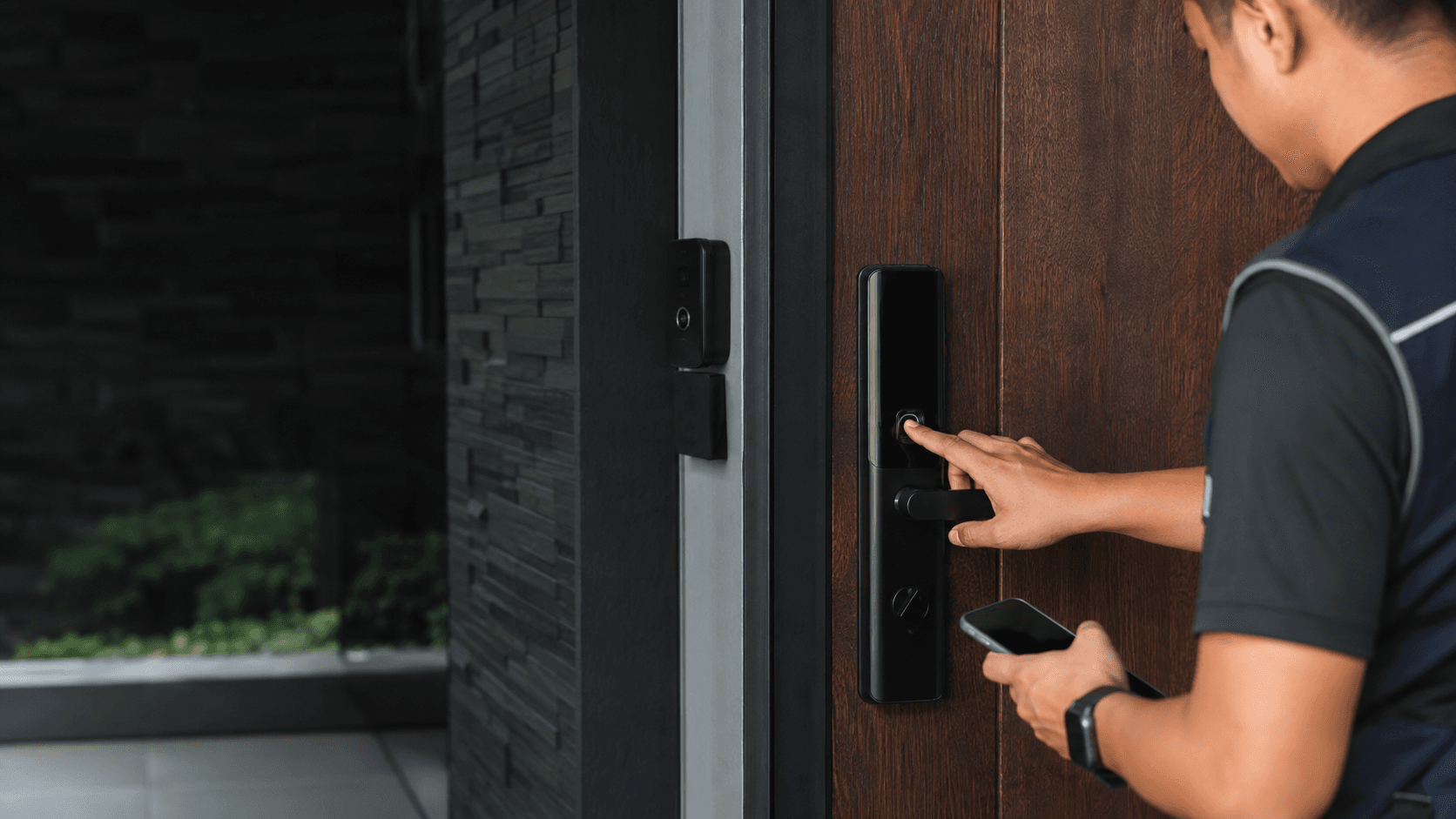
The Lockly keypad sits on the outside of the lock and is the part most people interact with daily. Lockly's own support material covers how the keypad is activated, how codes are entered, and what happens when the wrong code is typed too many times. That operational detail matters more than the product photography on a storefront page, because the keypad is where access decisions actually get made.
What a Lockly Keypad Is Used For
The keypad is the code-entry interface on a Lockly smart lock. Lockly support documentation describes four ways to unlock: a stored access code entered on the keypad, a registered fingerprint on supported models, a smartphone over Bluetooth, and the physical key supplied with the lock. The keypad is the method that works without a phone, a registered finger, or a key in hand.
That matters for shared doors. A household member, a cleaner, a tenant, or a contractor can be given a code instead of a key, and the code can be changed later without rekeying the lock. Lockly support material also references eKeys and eBadges in the wider product range, which are app-issued credentials rather than typed codes, so the keypad is one option inside a broader access system rather than the only way in.
On models that use PIN Genie, the digits are not shown in a fixed layout. Lockly describes PIN Genie as a keypad that shuffles the position of the numbers, so the physical location of each digit changes between uses. A fixed-layout keypad is also available on some models, and Lockly support documentation describes toggling between the two layouts by pressing and holding the OK button for three seconds.
How Access Codes Work on a Lockly Keypad
Lockly support documentation states that the default access code is 1 2 3 4 5 6, that a new access code can be any combination of 6 to 8 digits, and that entering a new code deletes the default. The same support article states that a maximum of 8 sets of access codes can be stored.
To enter a code, the keypad is first activated by sliding a hand across the screen. The code is then typed and confirmed with the OK button. Lockly support documentation notes that pressing OK at any point resets entry if a wrong digit was typed, which means a mistyped code does not have to be completed before starting again.
Lockly support documentation also describes locking from the outside by pressing the OK button when the door is closed, and auto-locking behaviour on supported models. The keypad therefore handles both directions of the door in normal use, not just entry.
Two practical constraints follow from the published code rules. First, the 6-to-8 digit range means a short four-digit code is not valid on the models covered by that documentation. Second, the 8-code storage limit is a real ceiling for shared doors, so a property with more than eight regular users needs a different access method for the overflow, such as app-issued credentials or a separate access-control arrangement.
Lockly Keypad Safe Mode and Failed Attempts
Lockly support documentation describes a safe mode that activates after repeated failed code attempts. The purpose is to stop someone standing at the door and working through combinations. Once safe mode is active, the keypad stops accepting normal entry until the lock is accessed another way, which is why the backup method is not an optional extra.
The backup method differs by model. Lockly support documentation lists the physical key supplied with the lock as one unlock method, and Bluetooth access through a paired smartphone as another. A key stored inside the house is not a backup. A key kept somewhere reachable from outside the door is.
Safe mode also changes how a shared door should be managed. If several people use the same code and one of them mistypes it repeatedly, the lock can enter safe mode for everyone. Issuing separate codes to separate people limits how much one person's mistakes affect the rest, and it makes it possible to remove one person's access without changing everyone else's code.
What to Check Before Choosing a Lockly Keypad
Eyonic's own product review guidance on smart lock door access states that smart locks work best when the door condition, user roles, and backup method are reviewed before installation, and that for business use the usual check is whether a standalone smart lock or an access-control panel is more appropriate. That is the same sequence that applies to a Lockly keypad, because the keypad is only as useful as the door and the access plan behind it.
- Check the door condition first. A door that does not close cleanly, a frame that has moved, or existing hardware that does not match the lock body will cause problems that no keypad feature can fix.
- Map the user roles. Count how many people need regular entry, how many need occasional entry, and how many need entry that can be withdrawn later. Compare that against the 8-code storage limit in Lockly's published documentation.
- Decide the backup entry method. Confirm that a physical key can be reached from outside the door, and that at least one person can unlock by app if the keypad is in safe mode.
- Decide between a standalone smart lock and an access-control panel. A single door with a small user group suits a standalone lock. Multiple doors, staff movement, and visitor handling usually point toward a panel-based arrangement.
The fourth check is the one most often skipped. Eyonic's completed work for the Kuching Immigration Office focused on arrival flow, staff areas, visitor movement, and dependable daily operation, and the KTA Sarawak Sdn Bhd project covered staff movement, visitor handling, and clearer daily site control. Both are cases where the access question was about movement through a site, not about one door. A single Lockly keypad answers a single-door question well. It does not answer a site-wide one.
There is also a limit on what can be confirmed before purchase. Published Lockly support documentation covers code length, the default code, the storage limit, keypad activation, and safe mode. It does not, in the material reviewed here, settle door thickness limits, battery life figures, or model-by-model comparisons. Those need the specification sheet for the specific model under consideration, and a site survey where the door is unusual.
Lockly Keypad Questions Buyers Ask Before Installing
Can the default code be left in place? Lockly support documentation states that entering a new access code deletes the default code of 1 2 3 4 5 6. Leaving the default in place on a door that anyone can reach defeats the purpose of the lock.
How many codes can be stored? The published figure is a maximum of 8 sets of access codes. That is the number to plan against when counting users.
What happens after repeated wrong codes? Safe mode activates, and normal keypad entry stops until the lock is accessed another way. The backup method needs to be reachable from outside the door before this happens, not after.
Does the keypad work without a phone? Yes. Code entry on the keypad is listed as a separate unlock method from Bluetooth smartphone access, so a person without a paired phone can still enter with a code.
Is a Lockly keypad the right fit for a business site? For one door with a small, stable user group, a standalone smart lock is a reasonable fit. For multiple doors, staff and visitor movement, or access that needs to be reviewed and changed often, an access-control panel is the more appropriate starting point. Eyonic's smart lock review guidance makes that distinction explicitly, and the Kuching Immigration Office and KTA Sarawak Sdn Bhd projects both centred on movement through a site rather than a single entry point.
Where a Lockly keypad is being considered alongside wider security work, the practical next step is to describe the site rather than the product. Share the location, property type, and required system with Eyonic on WhatsApp at +60 11-5111 7959, and the door, user, and backup questions can be worked through against the actual site.