
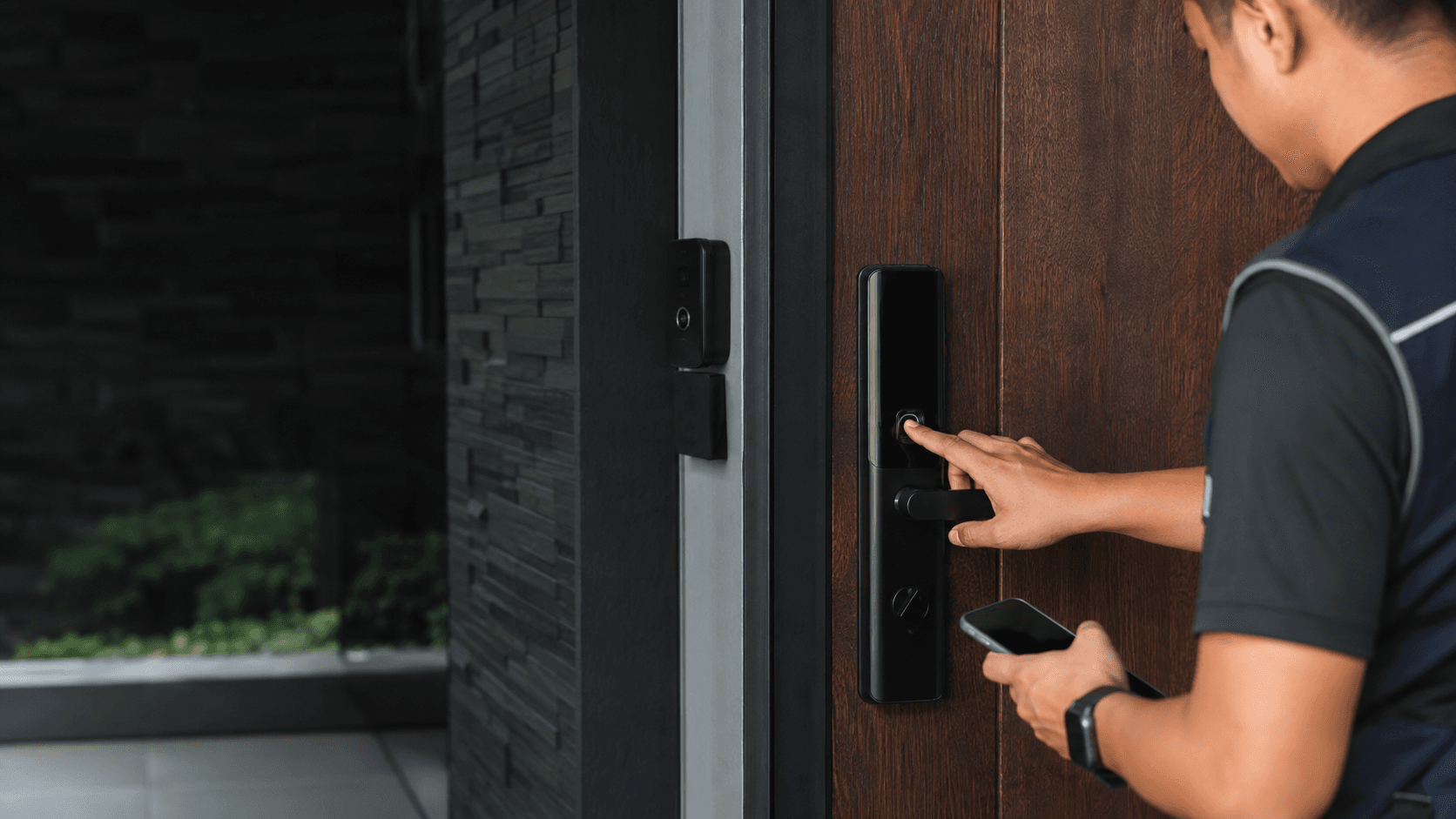
The lock reaches the internet through a Wi-Fi network, while the initial handshake between phone and lock runs over Bluetooth. That order matters, because the app cannot pass network credentials to a lock it has not yet recognised. Schlage documents this two-stage pattern for the Encode Series, and the same logic applies to any Schlage lock that carries Wi-Fi onboard.
Two practical consequences follow. First, the phone must be within Bluetooth range of the door during setup, so a lock on a distant gate or a rear entrance is easier to commission with the phone standing at the door rather than from a desk. Second, the Wi-Fi password has to be typed or pasted accurately at the moment the app asks for it, because a rejected password usually returns a generic failure rather than a clear message about the credential.
Connect Schlage Lock To Wifi. What the Setup Actually Requires
Three things have to be true before the pairing sequence will complete. The lock must be installed and powered, the phone must be running the Schlage Home app with an account signed in, and the Wi-Fi network must be one the lock can actually use.
Schlage's own support material describes the Encode Series as capable of a Bluetooth-only setup, with Wi-Fi added afterwards. That is a useful fallback. a lock that refuses to join a network can still be programmed, and the network step can be revisited later without reinstalling the hardware.
Door condition belongs in this list too. A deadbolt that binds in the strike plate, or a door that has swollen after rain, puts load on the motor and shortens the interval between battery changes. Eyonic's smart lock review notes that door condition, user roles and backup method are reviewed before installation, and that for business use the choice between a standalone smart lock and an access-control panel is worth checking first. A lock that is fighting the door will still pair, but it will not behave well afterwards.
Which Schlage Models Carry Wi-Fi and Which Rely on a Hub
Schlage has sold locks under several connection methods, and the model determines whether Wi-Fi is built in or added through a separate bridge. The Encode Series is the family Schlage documents as Wi-Fi enabled, with the Encode (BE489) and Encode Plus (BE499) named in its Bluetooth-only setup article. Older families such as Schlage Connect and Schlage Sense appear in Schlage's network-switching documentation alongside the Encode Series, and Schlage Connect is associated with Z-Wave hubs and platforms such as Samsung SmartThings rather than with a direct Wi-Fi radio.
The practical test is the app. If the Schlage Home app offers a Wi-Fi Settings entry for the lock, the lock has its own Wi-Fi radio. If the lock only appears through a hub or a security platform, the network path runs through that hub, and the Wi-Fi credentials belong to the hub rather than to the lock.
Model-level compatibility should be confirmed against Schlage's documentation for the exact model before any installation is planned, because the naming across generations is not self-explanatory.
Preparing the Network, the App and the Door Before Pairing
Most failed attempts trace back to something that could have been settled in advance. The list below covers the in-app pairing sequence; the preparation points sit around it.
- Confirm the lock model and whether it has its own Wi-Fi radio or depends on a hub.
- Install the lock on the door and check that the bolt moves freely by hand before powering it up.
- Install the Schlage Home app, create or sign in to an account, and grant camera access if the app requests it for QR scanning.
- Stand within Bluetooth range of the lock and start the add-lock flow from the app.
- Scan the QR code on the lock, or choose the alternative method and enter the programming code when prompted.
- Name the lock and assign it to a home in the app.
- When the app reaches the Wi-Fi step, select the network and enter the password.
- Test the result by locking and unlocking from the app while the phone is on mobile data rather than the same Wi-Fi network.
That last step is the one people skip. A lock that responds while the phone sits on the same network has not necessarily proven remote access; the test only means something when the phone is off the local network.
On the network side, the router should be reachable from the door. Wi-Fi signal falls off through walls, and a lock mounted in a metal-framed door or a recessed entrance can sit in a weaker spot than the phone that was used to set it up. Router placement is worth a second look before blaming the lock.
Connect Schlage Lock To Wifi in the Schlage Home App
The in-app flow is short. Open the app, add the lock, complete the Bluetooth handshake, then supply the network name and password when the Wi-Fi screen appears. Schlage's network-switching article describes the same settings path in reverse: open the app, open the lock, use the menu beside the lock name, choose Lock Settings, then Wi-Fi Settings.
Two details from Schlage's own instructions are worth knowing before starting. The app may ask for camera permission to scan the QR code, and there is an alternative method that uses the printed programming code instead. Schlage's Bluetooth-only article also describes a step where the app is force-closed when the Wi-Fi prompt appears, which is the documented way to keep a lock on Bluetooth only.
Remote access, user codes and entry history are the features that depend on the lock being online. A lock left on Bluetooth only still opens with codes and still works at the door; what it loses is control and notification from outside the home.
When the Lock Will Not Join a 5 GHz or Hidden Network
Schlage's published material does not state which Wi-Fi bands a given lock supports, so band behaviour should be checked against the documentation for the specific model rather than assumed. Where a lock is limited to the 2.4 GHz band, a router that broadcasts one combined network name can leave the lock trying to join a band it cannot use. Splitting the bands into separate names, or pointing the lock at the 2.4 GHz name, is the usual workaround.
Hidden networks are a separate problem. A network that does not broadcast its name has to be typed in exactly, including capitalisation, and some devices handle hidden SSIDs poorly. Broadcasting the name during setup and hiding it afterwards is a common compromise.
Other failure patterns worth checking, in rough order of likelihood:
- The password was mistyped, or contains a character the app handles awkwardly.
- The phone moved out of Bluetooth range before the Wi-Fi step finished.
- The router has client isolation or a guest network that blocks device-to-device traffic.
- The lock is running older firmware than the app expects.
- The lock is already associated with a different home or account in the app.
Firmware updates are worth checking in the app before a long troubleshooting session, since a lock that has sat in a box for a year may be several versions behind.
Changing the Router or Password After the Lock Is Paired
A new router, a changed password or a renamed network all break the existing association. The lock does not need to be removed from the door or re-added from scratch; the network details are updated in place.
- Bring the phone within Bluetooth range of the lock.
- Open the Schlage Home app and select the lock.
- Open the menu beside the lock name and choose Lock Settings.
- Open Wi-Fi Settings and choose the option to select a different network.
- Pick the new network and enter the current password.
- Confirm the connection, then test remote access with the phone on mobile data.
If the old network no longer exists, the lock may keep retrying it and draining battery faster than usual until the settings are updated. That is a reason to make the change promptly rather than leaving it for a convenient weekend.
Battery life is the trade-off that runs through all of this. A lock that is online, reporting events and answering remote commands uses more power than one that only wakes for a code entry. Schlage's Bluetooth-only guidance exists precisely because Wi-Fi costs battery, and a lock on a busy door will need fresh cells sooner than one on a quiet internal door.
Backup entry deserves a decision before the lock goes on the door, not after the battery dies. A mechanical key, a second code held by someone trusted, or a keyed alternative all work; what does not work is discovering the gap at the moment access is needed.
For properties in Sarawak where the door hardware and the network side are being handled together, Eyonic plans, supplies and installs security and ELV systems for homes, offices, shops and industrial sites, with a process built around site survey, system proposal, installation and handover. The company's smart lock review notes that door condition, user roles and backup method are checked before installation, and that business premises are assessed for whether a standalone smart lock or an access-control panel fits better. Completed work includes the Kuching Immigration Office project, which focused on arrival flow, staff areas, visitor movement and dependable daily operation, and the KTA Sarawak Sdn Bhd project, which covered staff movement, visitor handling, tidy cabling and clearer daily site control.
Share your location, property type and required system with Eyonic on WhatsApp at +60 11-5111 7959 for the next practical step.