
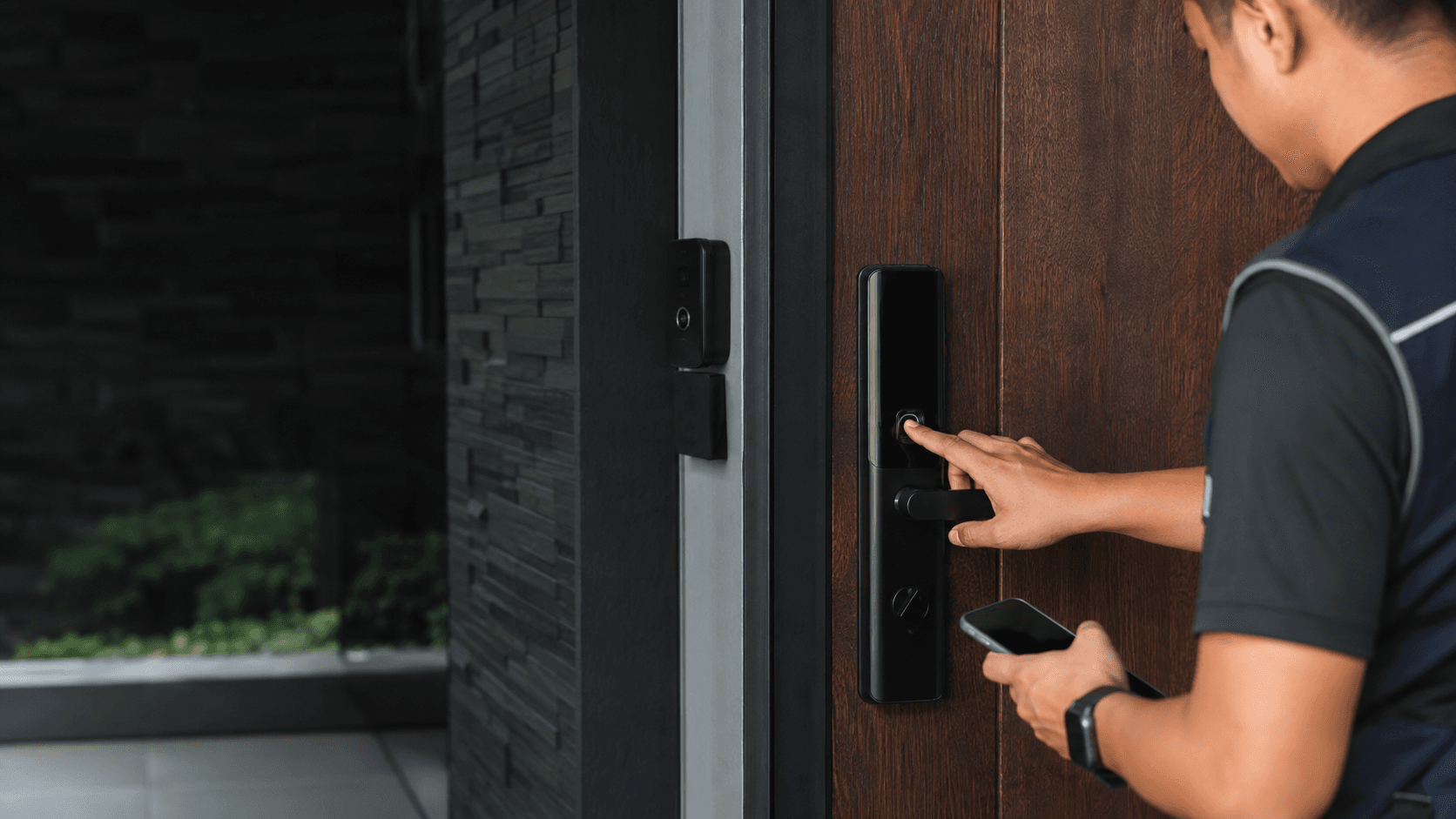
The exact phrase lockly fingerprint describes one credential type inside a wider smart-lock system, not a separate product. Lockly's own support documentation covers two registration routes, a set of accepted scanning directions, and a small set of LED and sound responses that tell a user whether a scan passed or failed. Those four things — registration, scanning, feedback, and fallback — are what decide whether fingerprint entry works on a real door.
Eyonic Sdn Bhd, a security system supplier in Sarawak, treats smart-lock door access as suitable for controlled convenience when user permissions and backup entry are planned properly, and reviews door condition, user roles, and backup method before installation. That review order matters more than the sensor itself, because a fingerprint reader cannot compensate for a door that will not close squarely or a building with no fallback plan.
What Lockly Fingerprint access covers on a door
Fingerprint entry is one of several ways to open a Lockly lock. Lockly product pages describe fingerprint, phone, voice control, and a physical key as separate access routes on the same device, and support documentation describes the fingerprint scanner sitting on the exterior side of the lock. A fingerprint is therefore a credential, not the lock's only identity.
Three practical consequences follow from that.
- Registration happens per lock, not per person, so each lock holds its own set of enrolled fingers.
- Each enrolled finger is stored as a numbered entry that can be labelled, which is how a household or office tracks who holds which credential.
- Removing a person means deleting that person's enrolled entries, not changing the lock.
Lockly's support material notes that fingerprint registration is only available on certain models, naming the Secure Plus and Secure Pro lines. Model support is the first thing to confirm before planning around fingerprint entry, because a Lockly lock without a biometric sensor will not accept a fingerprint at all.
Registering a Lockly Fingerprint in the app or programming mode
Lockly documents two registration paths. The app route runs through the Lockly app over a Bluetooth connection to the lock, using an Access Management area and a Fingerprint tab. The programming mode route is handled at the lock itself, for situations where the app is not the preferred tool.
The app sequence, as Lockly describes it, follows a fixed order.
- Open the Lockly app and select the lock being configured.
- Enter Access Management and open the Fingerprint tab.
- Choose the option to add a new fingerprint.
- Enter a label for the fingerprint so the entry can be identified later.
- Place the finger on the sensor repeatedly as prompted until the lock confirms the scan.
- Confirm the successful addition in the app to save the entry.
Lockly's support notes state that only fingerprint patterns containing a cross direction are accepted, which is a real constraint rather than a formality. A finger that cannot present a crossing pattern during enrolment will not complete registration, and the practical answer is to enrol a different finger rather than retry the same one indefinitely.
Programming mode registration exists for the same outcome through a different interface. Lockly's support desk links to a separate article explaining how to enter programming mode, and the registration steps there use the lock's own keypad and indicators instead of the phone screen. The trade-off is straightforward: the app gives a labelled, reviewable list of enrolled fingers, while programming mode works without a paired phone but gives less visibility into what is already stored.
Scanning positions and sensor care
Lockly documents specific scanning directions for the sensor rather than a single flat press. Support guidance tells users to place the registered finger on the scanner in the documented orientations, and to keep the sensor surface clean before scanning. A dirty or smeared sensor surface is one of the few failure causes a user can fix directly.
Feedback is deliberately simple. Lockly's locking and unlocking article describes a beep and a green LED when a registered fingerprint is acknowledged, and a red LED when it is not. That two-state response is the whole diagnostic vocabulary at the door, which is why registration quality matters: a poorly enrolled finger produces the same red LED as an unregistered one.
Where Lockly Fingerprint suits homes, offices and shops
Fingerprint entry fits where a small, stable group of people needs fast repeated access and where carrying a key or phone is inconvenient. A family home, a small office with a fixed staff list, and a shop counter door used by the same two or three people all match that pattern.
It fits less well where the group changes constantly. A short-term rental, a site with rotating contractors, or a premises with frequent visitor traffic puts pressure on the enrolment list, because every departure becomes a deletion task that someone has to remember to perform. Lockly's own product range positions fingerprint access alongside app control, access codes, and sharing features, which is the more practical combination when the user group is not fixed.
Eyonic's review of smart-lock door access makes the same distinction for business use, checking whether a standalone smart lock or an access-control panel is the better fit. A single door with a stable user list leans toward a standalone lock. Multiple doors, shift patterns, or a need to review who entered and when leans toward a panel-based approach.
Planning Lockly Fingerprint with door condition and backup entry
Two checks decide whether a fingerprint lock performs as expected on a given door.
The first is door condition. A door that binds, a frame that has moved, or a deadbolt that needs force to throw will produce unreliable locking regardless of how well the fingerprint is enrolled. Eyonic's smart-lock review guidance puts door condition first in the assessment, ahead of user roles and backup method, because a mechanical problem cannot be solved in software.
The second is backup entry. Fingerprint readers depend on the lock's power source, and a finger can fail to read through a cut, moisture, or cold skin. Lockly locks include a physical key and other access routes, so the backup question is not whether one exists but whether it is reachable. A key stored inside the premises behind the locked door is not a backup. A key held off-site, or an access code known to a second person, is.
User permissions are the third piece and the one most often left until after installation. Deciding in advance who holds an enrolled finger, who holds the app, and who can delete an entry prevents the common situation where a former staff member's fingerprint stays active because nobody owns the enrolment list.
For premises in Sarawak, the practical sequence mirrors the process Eyonic uses on installation work: a site survey, a system proposal, installation, and handover. Fingerprint entry is settled at the survey stage, when door condition, user roles, and backup method can be checked together rather than after the lock is mounted.
Eyonic's completed work includes the Kuching Immigration Office project, which focused on arrival flow, staff areas, visitor movement, and dependable daily operation, and the KTA Sarawak Sdn Bhd project, which supported staff movement, visitor handling, and clearer daily site control. Both are access-flow problems rather than single-door problems, and both illustrate why the user list and the fallback route get decided before hardware.
Common questions about Lockly Fingerprint
Can a fingerprint be added without the app
Yes. Lockly documents a programming mode route at the lock in addition to the app route, and the support desk links to a separate article covering how to enter programming mode. The app route remains easier to audit because enrolled fingers carry labels.
What happens when a fingerprint fails to read
The lock gives a red LED instead of the green LED and beep that signal an acknowledged fingerprint. The immediate fallback is another registered finger, an access code, the app, or the physical key. Repeated failure on the same finger usually points to enrolment quality or a soiled sensor rather than a lock fault.
How many fingerprints can one Lockly lock hold
Lockly's support material tracks enrolled fingerprints by number, which implies a finite list, but the supplied evidence does not state a capacity figure for any model. Capacity should be confirmed against the documentation for the specific lock before planning around a large user group.
Is fingerprint entry enough on its own
No. Fingerprint entry is one credential among several, and it depends on the lock's power source and on the door closing correctly. Planning it as the only way in creates a single point of failure that a key, code, or app route would remove.
Share the location, property type, and required system with Eyonic on WhatsApp at +60 11-5111 7959 for the next practical step.