XMEye and XMEye Pro are video monitoring apps for IPC and DVR cameras. Both use cloud technology and a device serial number login to show live view monitoring video on a phone, and XMEye also runs as a PC client for watching recorded video.
- Confirm the recorder model and whether it is a DVR or NVR.
- Connect the recorder to the router with an Ethernet cable.
- Install the XMEye or XMEye Pro app on the phone.
- Add the device by serial number or QR code, then open live view.
What XMEye DVR Software Does
XMEye is video monitoring software for IPC and DVR. With cloud technology, it is easy to log in by the device serial number to show the live view monitoring video to the phone and do operations accordingly. XMEye Pro is the same class of app, published for Android and iOS, and XMEye also has a PC client for watching video on a computer.
XMEye DVR coverage in the current results centers on the app itself: live view, playback of recorded footage, video backup, and device management. The XMEye manual notes that the DVR system should be connected to the router by Ethernet cable before the app is set up.
XMEye and XMEye Pro on Phone and PC
XMEye and XMEye Pro are the two app names that appear most often for this software. XMEye Pro is listed on Google Play and the App Store as video monitoring software for IPC and DVR, and XMEye appears on Google Play with the same description. The XMEye site also documents a PC client for computer-based viewing.
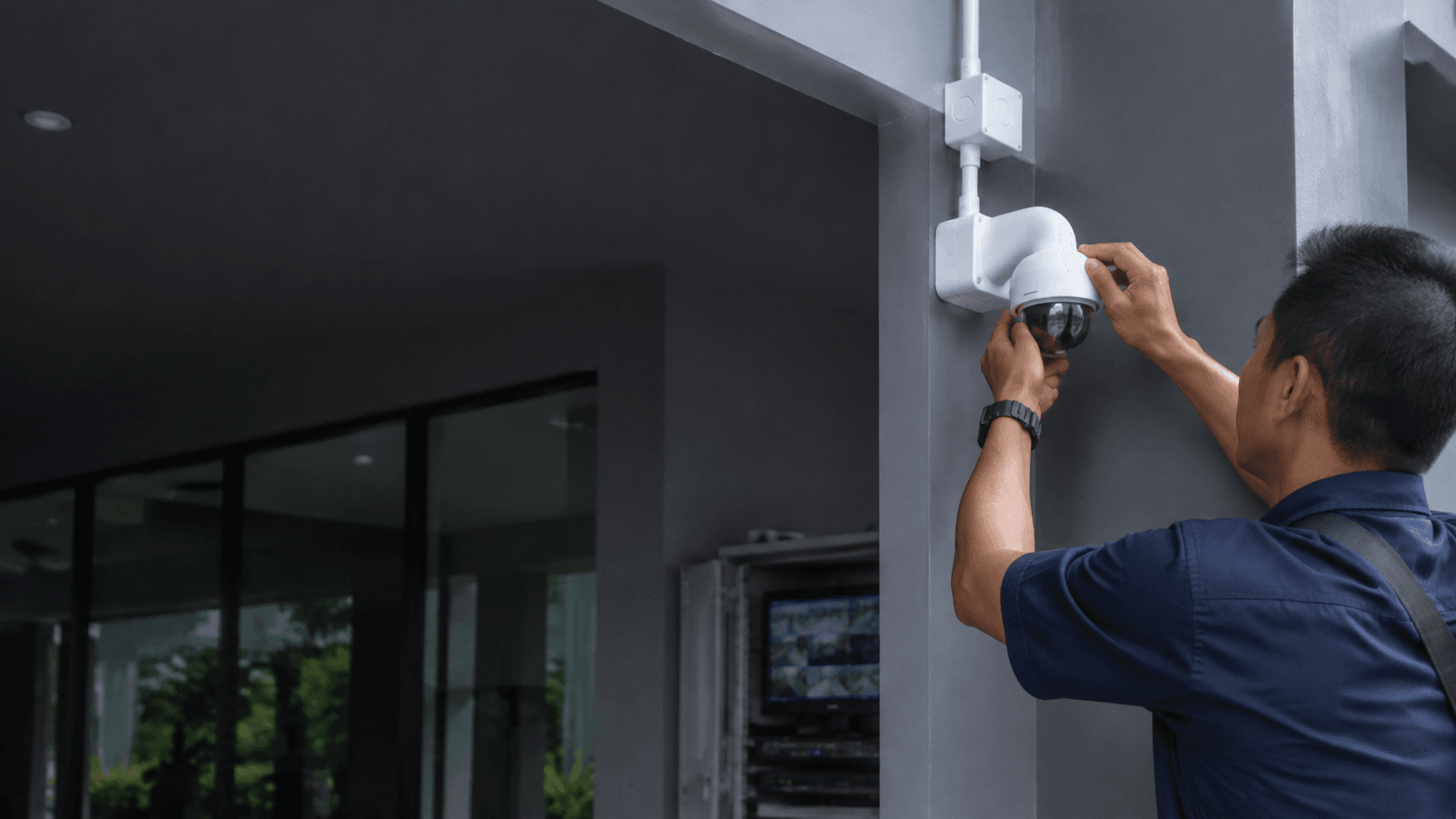
Eyonic Sdn Bhd, a security system supplier in Sarawak, Malaysia, plans, supplies and installs monitoring systems with camera placement, recording and remote viewing for homes, offices, shops and industrial sites. That work includes site survey, NVR setup and remote viewing handover, which is where an app such as XMEye or XMEye Pro is configured on the user's phone. [Source: https://www.eyonicsecuritysystem.com.my/]
XMEye DVR Setup Steps
The XMEye manual describes the same basic sequence: download and install the app, add the DVR system to the app, then open live video. Adding the device uses the serial number or a QR code, and the device list shows connection status for each channel.
Eyonic's CCTV installation process includes site survey, system proposal, installation, and handover. [Source: https://www.eyonicsecuritysystem.com.my/cctv-installation-services-sarawak] Handover is the point where remote viewing is checked on the user's device, so the app login and live view are confirmed before the job closes.
Limits and Practical Considerations
XMEye DVR guidance here covers the app and its documented setup path. It does not cover every recorder brand, firmware version or network condition, and app store listings for XMEye and XMEye Pro include user reports of connection and performance issues. Where a recorder is not reachable over the network, the app cannot show live view regardless of settings.
Eyonic recommends checking actual lighting conditions before confirming placement for ColorVu-style cameras. [Source: https://www.eyonicsecuritysystem.com.my/product-reviews/hikvision-colorvu-camera-review] The same principle applies to remote viewing: confirm the network path and the recorder model before relying on the app.
Working With Eyonic on XMEye DVR Setup
Eyonic Sdn Bhd is based in Sarawak, Malaysia, and works on CCTV and ELV systems for homes, offices, shops and industrial sites. Eyonic completed a project for the Kuching Immigration Office, focusing on arrival flow, staff areas, visitor movement, and dependable daily operation. [Source: https://www.eyonicsecuritysystem.com.my/our-projects/kuching-immigration-office]
For XMEye DVR questions, the practical next step is to confirm the recorder model, the network connection and the phone or PC that will run the app, then verify live view before handover.